Overview
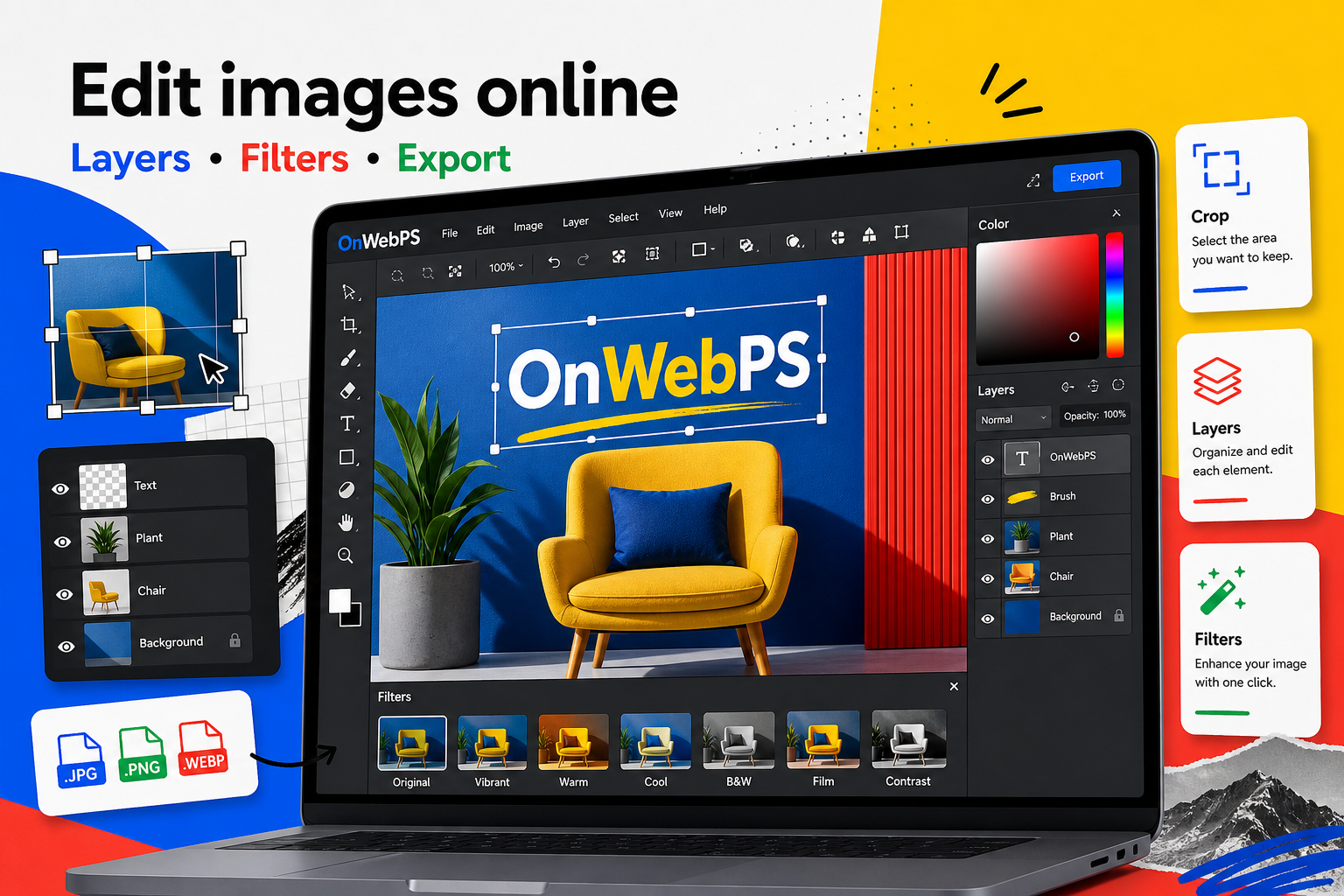
Layers turn a flat edit into an editable design. Instead of burning every change into one photo, you can separate the background, color correction, text, shapes, and finishing effects. That makes revisions faster and prevents small experiments from damaging the original image.
Use a copy of important images, keep reusable elements on separate layers, and decide the final destination before choosing crop, size, and export format.
Start with a clean stack
Keep the original image at the bottom, duplicate it for editing, then place overlays, shapes, labels, and text above. This order helps you understand the file later. If a project has many pieces, name layers by purpose: background, photo, correction, headline, label, and accent.
In OnWebPS, keep the workflow practical: work on a duplicate when the change is risky, compare the edited result with the original, and export only after checking the image at the size where people will actually see it.
Use opacity for readability
Opacity is a practical design tool. A dark rectangle at full strength may hide the photo, but the same rectangle at 25 percent can make white text readable while preserving the image. Try opacity before applying heavier filters.
In OnWebPS, keep the workflow practical: work on a duplicate when the change is risky, compare the edited result with the original, and export only after checking the image at the size where people will actually see it.
Blend carefully
Blending modes can integrate texture, light, and color, but they should serve the image. Multiply can darken, Screen can brighten, and Overlay can add contrast. If skin tones, product colors, or interface screenshots become inaccurate, reduce the opacity or return to normal blending.
In OnWebPS, keep the workflow practical: work on a duplicate when the change is risky, compare the edited result with the original, and export only after checking the image at the size where people will actually see it.
Test filters on duplicates
Duplicate a layer before using blur, sharpen, noise, color effects, or artistic filters. Compare the filtered layer with the original. If the result is too strong, lower opacity or delete the duplicate. This keeps the decision reversible.
In OnWebPS, keep the workflow practical: work on a duplicate when the change is risky, compare the edited result with the original, and export only after checking the image at the size where people will actually see it.
Keep text editable
Create text and shapes on separate layers. A headline may need rewriting after the image is reviewed, and a label may need a new color for better contrast. Editable layers let you revise without rebuilding the whole graphic.
In OnWebPS, keep the workflow practical: work on a duplicate when the change is risky, compare the edited result with the original, and export only after checking the image at the size where people will actually see it.
Concrete example
Example project: a sale banner with editable text
For a small shop banner, place the product photo on the bottom layer, add a low-opacity color shape over one side, then put the discount text on top. If the sale changes from 20 percent to 25 percent, you only edit the text layer instead of rebuilding the banner. This is where layers become practical rather than theoretical.
Common mistake
Common mistake: flattening too early
Flattening a design before review removes the flexibility that layers provide. Keep a layered working version until the headline, colors, and crop are approved. Export a flattened copy only for publishing.
Practical FAQ
How many layers are too many?
Use as many as the design needs, but every layer should have a purpose. If you cannot explain why a layer exists, hide it and see whether the image becomes clearer.
Final checklist
- Keep the original layer untouched.
- Use one layer for each major purpose.
- Reduce opacity before deleting a useful effect.
- Check text readability at final size.
- Remove layers that do not improve the design.
This guide is intentionally practical: repeat the same steps on a real image, compare the before and after result, and keep the version that communicates the task most clearly.