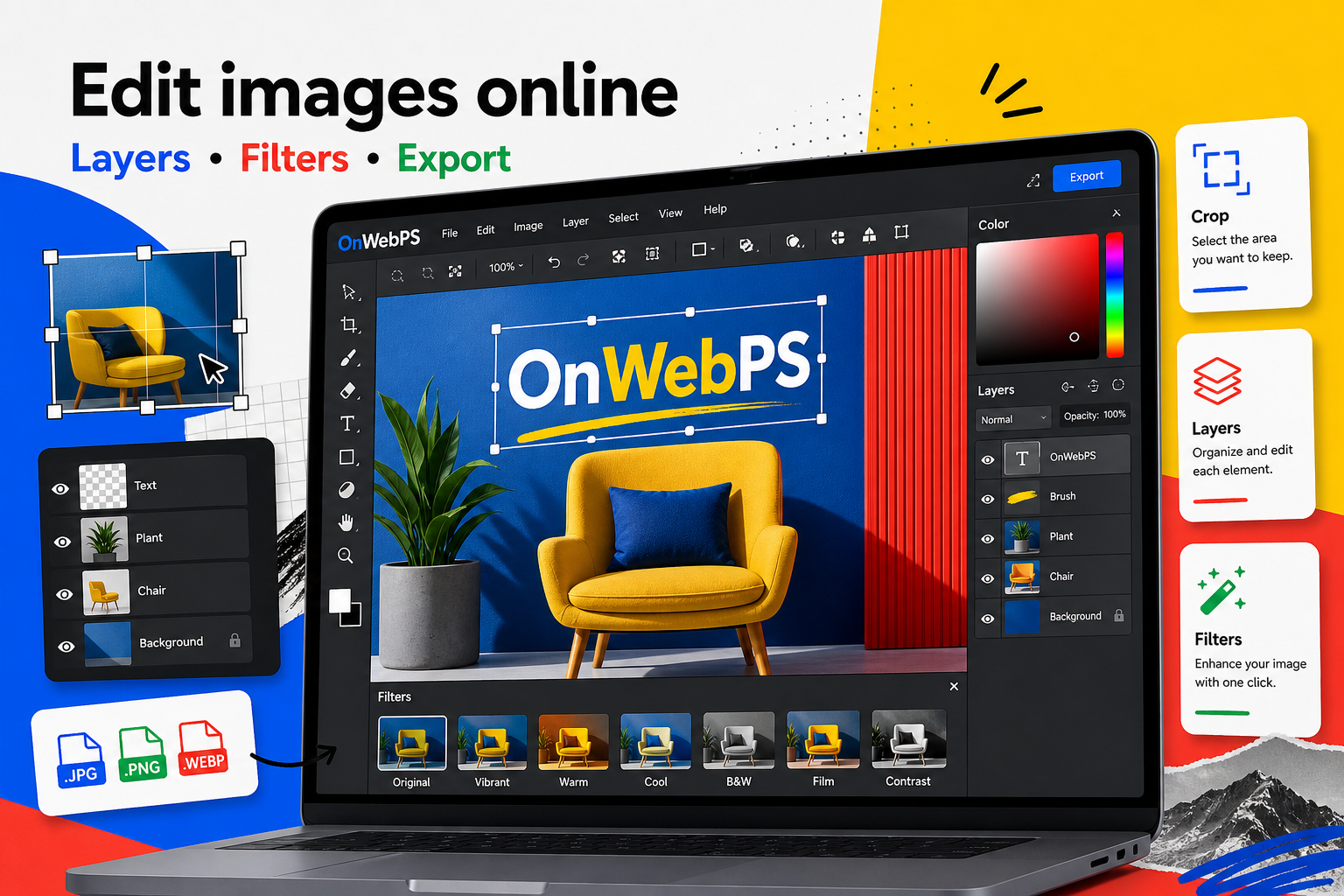
Overview
Most editing problems have a simple cause. Before restarting a project, check the active layer, selection state, file size, zoom level, and export format. A calm checklist usually finds the issue quickly.
Use a copy of important images, keep reusable elements on separate layers, and decide the final destination before choosing crop, size, and export format.
The tool edits the wrong object
Check which layer is active. If the wrong layer is selected, brush strokes, filters, and deletes will affect the wrong part of the design. Select the intended layer and try again.
In OnWebPS, keep the workflow practical: work on a duplicate when the change is risky, compare the edited result with the original, and export only after checking the image at the size where people will actually see it.
Nothing seems to happen
Look for an active selection. Some edits only affect the selected area, so a tiny hidden selection can make changes appear broken. Clear the selection or select the correct area.
In OnWebPS, keep the workflow practical: work on a duplicate when the change is risky, compare the edited result with the original, and export only after checking the image at the size where people will actually see it.
The file feels slow
Large images, many layers, and heavy filters can slow browser editing. Resize huge source images when final output is smaller, close unused tabs, and flatten copies only when you no longer need separate layers.
In OnWebPS, keep the workflow practical: work on a duplicate when the change is risky, compare the edited result with the original, and export only after checking the image at the size where people will actually see it.
The export looks blurry
Check whether the image was enlarged beyond its source quality. Text and screenshots especially need enough pixels. Export at the correct dimensions and use PNG for sharp interface graphics if JPG compression harms edges.
In OnWebPS, keep the workflow practical: work on a duplicate when the change is risky, compare the edited result with the original, and export only after checking the image at the size where people will actually see it.
Transparency disappears
Make sure you export PNG when transparency is required. JPG cannot keep transparent areas. Also check whether a white background layer is still visible underneath your cutout.
In OnWebPS, keep the workflow practical: work on a duplicate when the change is risky, compare the edited result with the original, and export only after checking the image at the size where people will actually see it.
Concrete example
Example project: diagnosing a blurry exported screenshot
If a screenshot export looks soft, check whether it was enlarged after capture, whether JPG compression damaged text, and whether the final dimensions match the page layout. Export PNG for sharp interface text when needed.
Common mistake
Common mistake: assuming the tool is broken
Many problems come from selections, hidden layers, wrong export format, or oversized source files. Check the simple causes before restarting the project.
Practical FAQ
Why did my edit only affect a tiny area?
A small active selection may still be present. Clear the selection or select the intended area before applying the next edit.
Final checklist
- Check the active layer.
- Clear unwanted selections.
- Reduce oversized source files.
- Use PNG for sharp graphics and transparency.
- Inspect export dimensions.
This guide is intentionally practical: repeat the same steps on a real image, compare the before and after result, and keep the version that communicates the task most clearly.