Overview
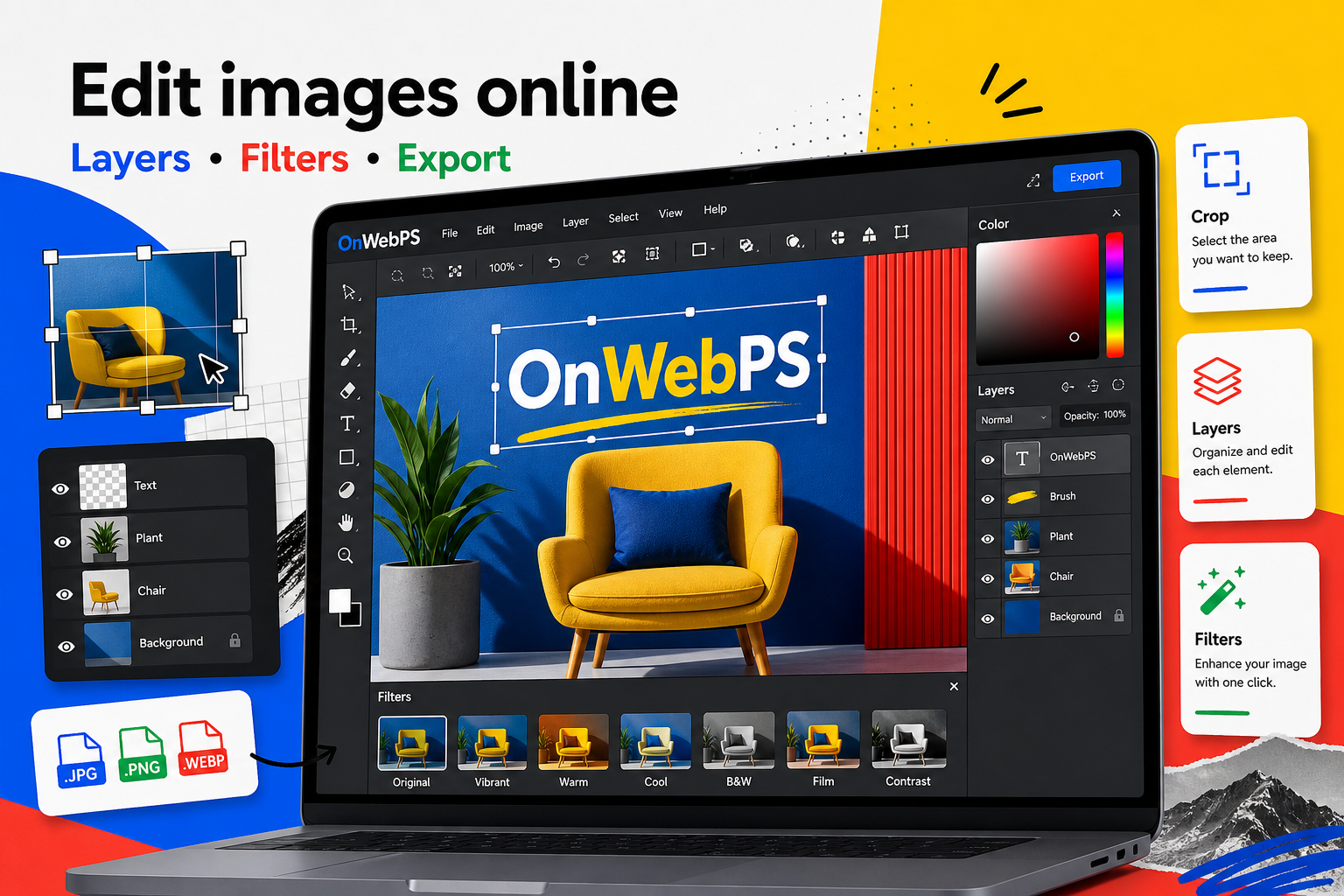
Speed comes from fewer mistakes as much as from faster clicks. The best editing habits keep you oriented: know the active layer, zoom often, save versions, and use undo before small mistakes become large repairs.
Use a copy of important images, keep reusable elements on separate layers, and decide the final destination before choosing crop, size, and export format.
Check the active layer
Before drawing, deleting, moving, or applying effects, glance at the layer panel. Many editing problems come from working on the wrong layer. This one habit saves more time than any shortcut.
In OnWebPS, keep the workflow practical: work on a duplicate when the change is risky, compare the edited result with the original, and export only after checking the image at the size where people will actually see it.
Zoom with purpose
Zoom in for edges, text alignment, and retouching. Zoom out for composition, balance, and final readability. Staying at one zoom level for the whole edit leads to either messy details or weak overall design.
In OnWebPS, keep the workflow practical: work on a duplicate when the change is risky, compare the edited result with the original, and export only after checking the image at the size where people will actually see it.
Use undo early
If a stroke, selection, or filter is wrong, undo immediately. Do not try to repair a mistake that can be reversed cleanly. Save repair work for changes that cannot be undone.
In OnWebPS, keep the workflow practical: work on a duplicate when the change is risky, compare the edited result with the original, and export only after checking the image at the size where people will actually see it.
Save versions for milestones
Export or save a version before major changes such as background removal, large retouching, or filter experiments. A milestone file lets you return to a stable point without rebuilding from the start.
In OnWebPS, keep the workflow practical: work on a duplicate when the change is risky, compare the edited result with the original, and export only after checking the image at the size where people will actually see it.
Build a repeatable workflow
Use the same order for common jobs: open, duplicate, crop, correct, add text, export, review. A consistent order reduces decision fatigue and makes your results more predictable.
In OnWebPS, keep the workflow practical: work on a duplicate when the change is risky, compare the edited result with the original, and export only after checking the image at the size where people will actually see it.
Concrete example
Example project: editing a batch of blog screenshots faster
Use the same routine for every screenshot: open, crop, duplicate, redact private details, add one label, export, and review. A repeated order reduces mistakes and makes the article set feel consistent.
Common mistake
Common mistake: staying zoomed in too long
Close zoom helps details, but it hides composition. Zoom out regularly to check whether the full image still communicates clearly.
Practical FAQ
What is the fastest habit to improve editing?
Check the active layer before each major action. It prevents many slow fixes caused by editing the wrong element.
Final checklist
- Look at the active layer first.
- Zoom in and out deliberately.
- Undo small mistakes quickly.
- Save milestone versions.
- Follow a repeatable editing order.
This guide is intentionally practical: repeat the same steps on a real image, compare the before and after result, and keep the version that communicates the task most clearly.