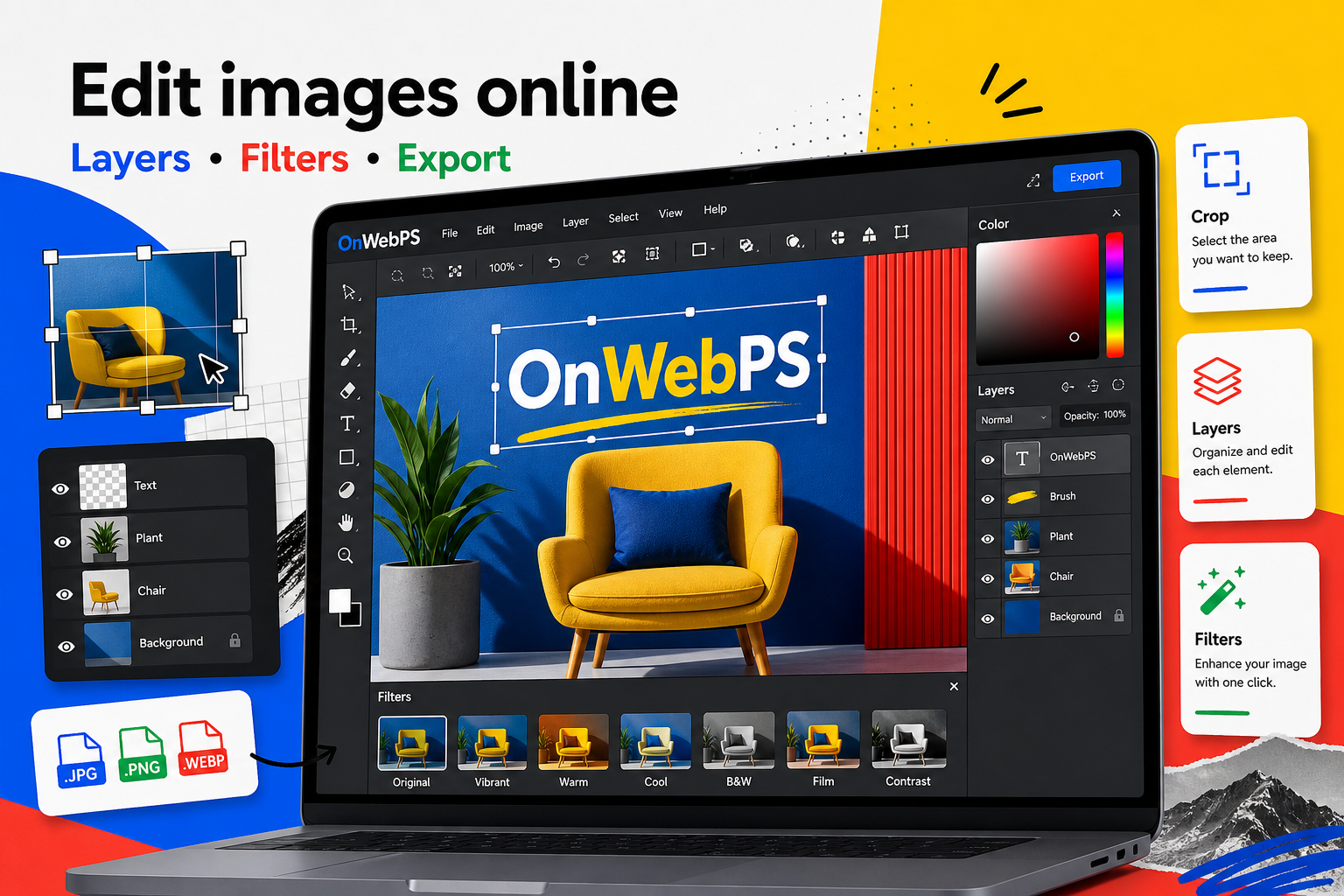
Overview
Transparent PNG files are useful for logos, stickers, overlays, icons, lower-thirds, and presentation assets. The important part is not only deleting the background. The important part is making the edge clean on any surface.
Use a copy of important images, keep reusable elements on separate layers, and decide the final destination before choosing crop, size, and export format.
Start with a clear asset
The best transparent PNG starts from a sharp source with clean contrast. Low-resolution logos and screenshots with compression artifacts are harder to clean. If you have a vector or original source, use that before editing a poor copy.
In OnWebPS, keep the workflow practical: work on a duplicate when the change is risky, compare the edited result with the original, and export only after checking the image at the size where people will actually see it.
Remove the background carefully
Use selection tools to remove plain backgrounds first. For complex edges, work in smaller pieces and zoom in. Avoid leaving a light or dark outline around the asset because it will show on contrasting backgrounds.
In OnWebPS, keep the workflow practical: work on a duplicate when the change is risky, compare the edited result with the original, and export only after checking the image at the size where people will actually see it.
Test against colors
Place temporary black, white, and colored layers behind the asset. This reveals halos, missed pixels, and jagged edges. Delete or hide the test layers before exporting the final PNG.
In OnWebPS, keep the workflow practical: work on a duplicate when the change is risky, compare the edited result with the original, and export only after checking the image at the size where people will actually see it.
Keep enough padding
Transparent assets need comfortable space around them. If a logo touches the edge of the canvas, it can look cramped when used in a design. Add canvas space if necessary without scaling the logo itself.
In OnWebPS, keep the workflow practical: work on a duplicate when the change is risky, compare the edited result with the original, and export only after checking the image at the size where people will actually see it.
Export and verify transparency
Export as PNG, then reopen the file or place it on a different background to confirm the transparent area is truly transparent. A JPG export will flatten the background and remove transparency.
In OnWebPS, keep the workflow practical: work on a duplicate when the change is risky, compare the edited result with the original, and export only after checking the image at the size where people will actually see it.
Concrete example
Example project: preparing a logo overlay
Remove the white background from a logo, test it on dark and light layers, add a little transparent padding around it, then export as PNG. The logo can now sit on photos, video frames, and presentation slides.
Common mistake
Common mistake: exporting transparency as JPG
JPG removes transparency. If a logo needs to float over different backgrounds, export PNG and verify the transparent area afterward.
Practical FAQ
Why does my transparent image show a white box?
The file may have been saved as JPG, or a white background layer may still be visible. Hide the background and export PNG.
Final checklist
- Use the cleanest source available.
- Remove halos around edges.
- Test on dark and light backgrounds.
- Leave useful padding.
- Verify transparency after export.
This guide is intentionally practical: repeat the same steps on a real image, compare the before and after result, and keep the version that communicates the task most clearly.